Transcripts
PodNotes can create transcript notes from podcast episodes. Plain transcription uses OpenAI's Whisper model, while optional speaker diarization can use OpenAI or Deepgram.
Setting Up
Before you can use transcription, set up the following:
-
OpenAI API key: Create a key at OpenAI's website. In Settings -> PodNotes -> Transcript settings, use OpenAI API key to select an existing Obsidian secret or create one. Plain Whisper transcription and OpenAI diarization both use this secret.
-
Transcript file path: Choose where transcript files are saved. You can use placeholders such as
{{podcast}}and{{title}}in the path. -
Transcript template: Customize how the transcript note is formatted.
How API keys are stored
PodNotes uses Obsidian's native secret picker. The API key value is kept in
Obsidian's vault-local secret storage; PodNotes stores only a provider-specific,
PodNotes-owned secret name in its data.json, through the openAISecretId and
deepgramSecretId references. If you explicitly select a shared Obsidian
secret, PodNotes copies its value into a collision-safe name owned by the chosen
provider. Persisted OpenAI references therefore cannot read Deepgram or foreign
secrets, and persisted Deepgram references cannot read OpenAI or foreign
secrets.
PodNotes requires Obsidian 1.11.5 or newer because that release encrypts secret storage on disk using encryption provided by the operating system. Secret storage keeps keys out of PodNotes files and normal settings exports, but it is shared infrastructure rather than plugin isolation: other installed plugins can access the same vault-local secret collection.
Secret values are local to the current vault on the current device. A selected secret name can sync with the rest of the vault configuration while its value does not. If PodNotes says that a selected secret is unavailable on this device, open Transcript settings on that device and select or create the secret again.
When upgrading from a version that stored API keys directly in data.json,
PodNotes moves existing OpenAI and Deepgram keys into Obsidian's secret storage
before rewriting the settings file. The plaintext fields are then removed. If
that migration cannot be completed and verified, PodNotes leaves the existing
settings file unchanged and shows a persistent notice so you can restart the
plugin and retry.
The migration cannot erase copies that already exist in backups, Obsidian Sync version history, filesystem snapshots, or old plaintext settings exports. If a key may have reached an untrusted device or backup, rotate it with the provider and remove any old export files you no longer need.
Creating a Transcript
To create a transcript:
- Start playing the audio episode you want to transcribe.
- Run PodNotes: Transcribe current episode from the command palette.
- PodNotes fetches the currently playing episode's audio, reusing an existing download when available. Plain Whisper and OpenAI diarization split large audio into chunks; Deepgram diarization sends the episode in one request.
- When transcription finishes, PodNotes creates a note at the configured transcript path.
The command always uses the currently playing episode's own audio, regardless of your episode download path setting. It remains available when a required secret is missing so it can tell you which provider must be configured on the current device.
Generated transcript notes are also available to workflow plugins through the PodNotes API, so tools such as QuickAdd or Templater can read the text and send it to the AI provider configured in your own macro.
Transcript Template
The transcript template works similarly to the
note template, with the additional
{{transcript}} placeholder.
Speaker Diarization
By default, transcription uses OpenAI's Whisper model, which produces plain text with no speaker labels. Speaker diarization is an opt-in setting that labels each transcript segment by speaker:
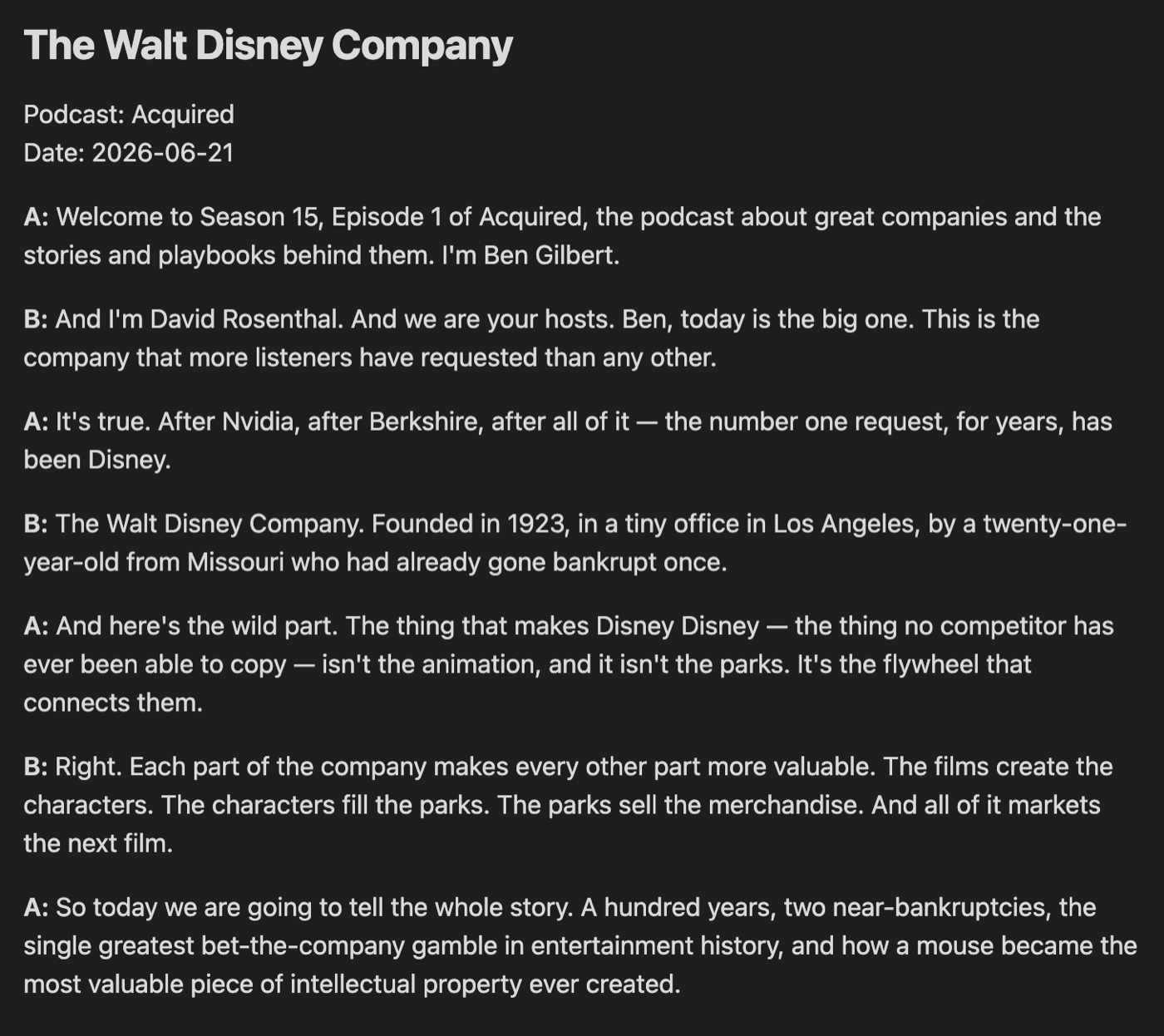
Enabling it
In the Transcript settings section, turn on Speaker diarization and choose a provider:
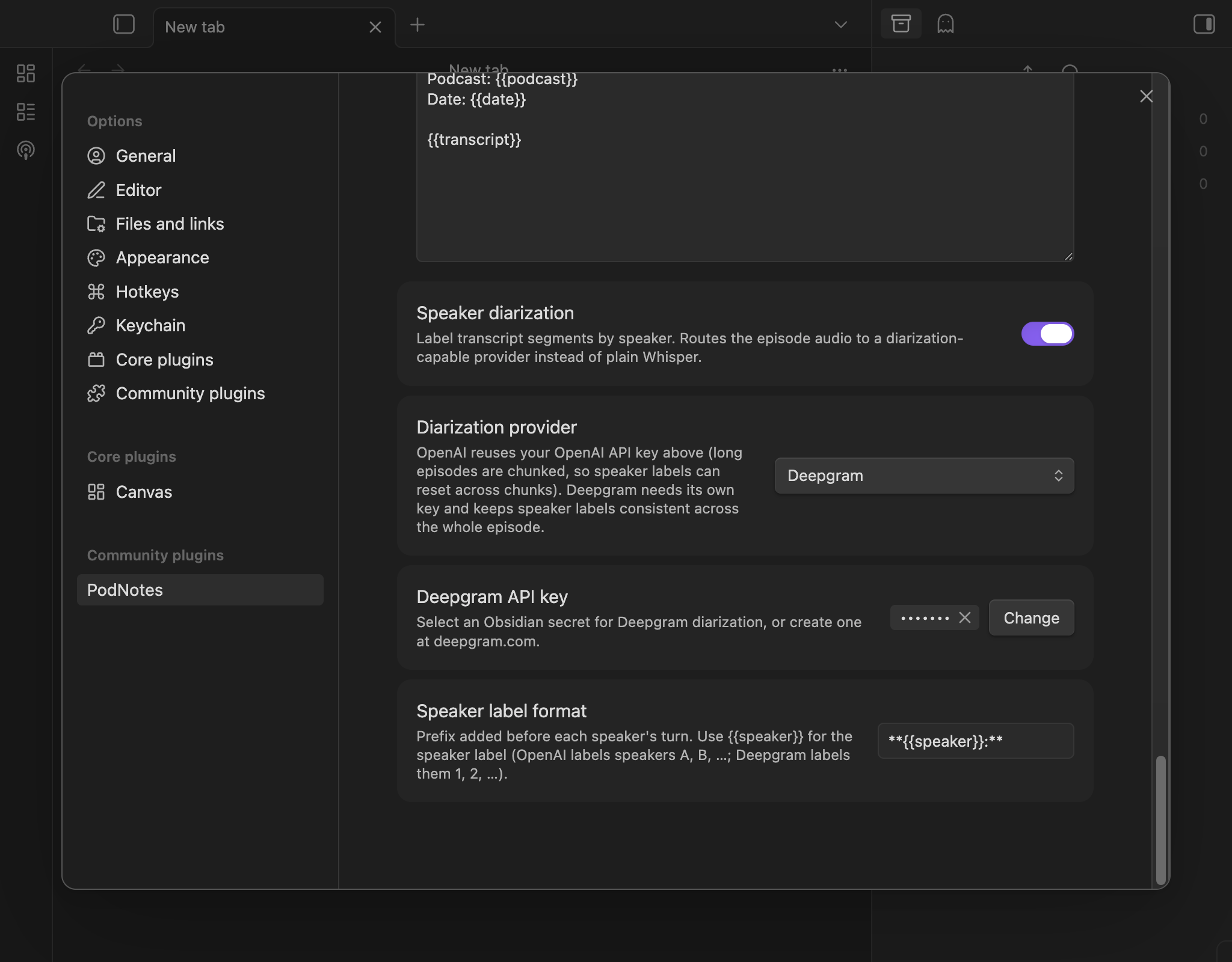
- OpenAI (
gpt-4o-transcribe-diarize) reuses the OpenAI secret selected above. Because each request is capped at about 20 MB, a conservative margin under OpenAI's 25 MB request cap, a long episode is diarized in independent chunks. Speaker labels can therefore reset across chunk boundaries. A typical episode fits in one request and keeps consistent labels. - Deepgram sends the whole episode in one request, so speaker labels remain consistent throughout the episode. Create a separate key at deepgram.com, then select an existing Obsidian secret or create one under Deepgram API key. The Deepgram secret is used only for Deepgram diarization and is local to the current vault and device.
Diarization is off by default, so existing transcripts and the plain-Whisper workflow are unchanged unless you enable it.
Speaker label format
The Speaker label format setting controls the prefix added before each speaker's turn. Use the {{speaker}} placeholder for the speaker's label:
- OpenAI labels speakers
A,B,C, … - Deepgram labels speakers
1,2,3, …
The default is **{{speaker}}:**, which renders as an **A:**-style bold
prefix. To spell out the word "Speaker", use **Speaker {{speaker}}:**. To put
each turn in a blockquote, use > {{speaker}}:.
The labelled transcript replaces the usual {{transcript}} value in your transcript template, so you don't need to change your template to use diarization.
Cost
Diarization providers bill per minute/hour of audio (separately from any plain-Whisper usage). As of mid-2026, OpenAI's diarize model is roughly $0.006 per minute, and Deepgram's diarized pre-recorded transcription is roughly $0.0068 per minute. Check each provider's current pricing before transcribing long back-catalogues.